
Company Monitoring
A client’s circumstances can change at any time after you’ve onboarded them. A new director might be appointed, the registered office could move, or the people with significant control might change. Any of these could affect your risk assessment, and you may not find out until the next periodic review.
Company Monitoring watches Companies House for you. Choose which types of filing you want to know about for each client, and MLVerify will notify you when one is filed.
Which clients can be monitored
Monitoring is available for any client that has a Companies House company number. That includes limited companies and LLPs, as well as any other business type that has a company number recorded against it.
It isn’t available for sole traders or individuals, because they don’t file with Companies House.
If you can’t see the Monitor button on a client, check that their company number has been entered on the client’s details.
Turning on monitoring for a client
Open the client from your client list. Next to the company number you’ll see a Monitor button.
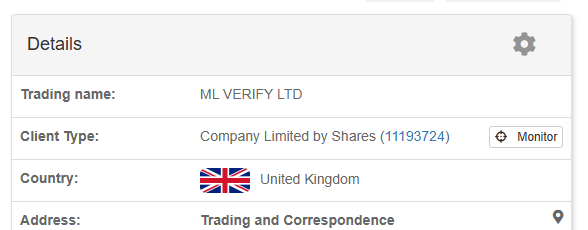
Click Monitor to open the Company Monitoring window. It lists every type of Companies House filing that can be monitored. Tick the ones you want to be notified about and click Save.
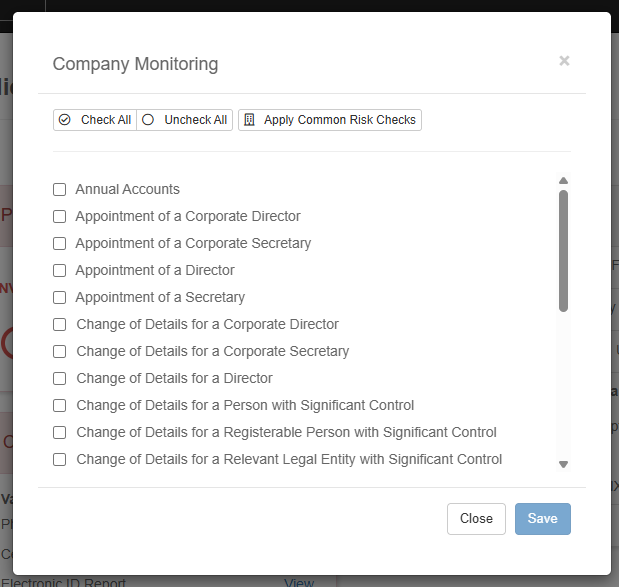
The buttons at the top of the window give you some shortcuts:
- Check All - ticks every filing type
- Uncheck All - clears every tick
- Apply Common Risk Checks - ticks a recommended set of filings that are most likely to affect a client’s risk (see below)
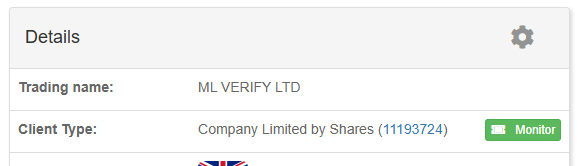
Once monitoring is turned on for a client, the Monitor button turns green. You can then see at a glance which clients are being monitored.
Common risk checks
Apply Common Risk Checks selects the filings that usually signal a change in who runs, owns or controls a company:
| Form | What it means |
|---|---|
AD01 |
Change of registered office address |
AP01 |
Appointment of a director |
AP02 |
Appointment of a corporate director |
CH01 |
Change of a director’s details |
CH02 |
Change of a corporate director’s details |
DS01 |
Application to strike off the company |
NM01 |
Change of company name |
PSC01 - PSC03 |
A new person with significant control (individual, company or other) |
PSC04 - PSC06 |
Change of details of a person with significant control |
PSC07 |
A person with significant control has ceased |
PSC08 - PSC09 |
Notification or update of a PSC statement |
TM01 |
Termination of a director’s appointment |
TM02 |
Termination of a secretary’s appointment |
This is a good place to start for most clients. You can then tick or untick individual filings to suit your own procedures.
Changing or turning off monitoring
Click the Monitor button on the client again to change the filings being monitored. Make your changes and click Save. The Save button is only enabled once you’ve changed something.
To stop monitoring a client, click Uncheck All and then Save. The Monitor button will go back to grey.
Each time monitoring is turned on, changed or turned off, an entry is added to your event log for that client.
Notifications
MLVerify regularly checks Companies House for new filings on each monitored client. When it finds a filing you’ve chosen to monitor, it adds a notification to your account, for example:
Appointment of a director for Example Ltd. was detected on 14 October 2026.
The client name links straight to the client, so you can review the change and update their details or risk assessment if needed.
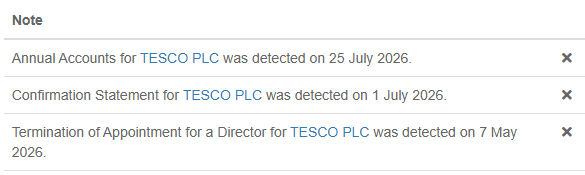
You’ll find notifications on your Dashboard under the Notifications tab. Click the × next to a notification to dismiss it once you’ve dealt with it.
Recent notifications are also included in your weekly digest email, if you have it turned on.
You’re only notified about filings made on or after the date the client was added to MLVerify. Older filings aren’t reported, so turning on monitoring for an existing client won’t flood you with historic notifications.
Company Monitoring report
To see every client you’re monitoring, go to Reports and select Company Monitoring.
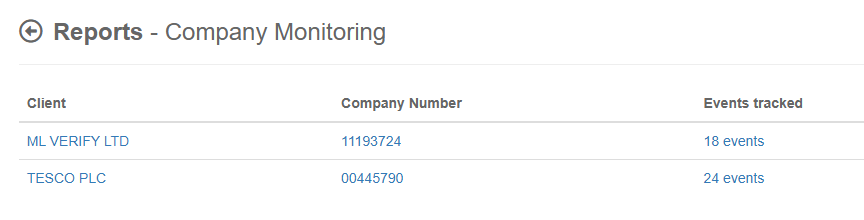
For each client, the report shows:
-
Client - the client’s name, linking to their client page
-
Company Number - linking to the company’s Companies House details
-
Events tracked - how many filing types are being monitored. Click it to open the Company Monitoring window and change them without leaving the report